

Table of content
When an ad works on Facebook or Instagram, it is not by chance. Behind every purchase or form attributed to a campaign sits a discreet tool: the Meta Pixel. Badly installed, fired without consent or twice, it skews your results and exposes your business. Here is what it does, what it measures and how to use it properly in Switzerland.
In short
The Meta Pixel is a JavaScript snippet that sends your visitors' actions to Meta (views, carts, purchases, forms).
It runs in the browser: Safari's restrictions, ad blockers and cookie refusals reduce what it sees.
Meta recommends complementing it with the Conversions API, using a shared event_id.
EU: prior consent. Switzerland: information and a right to refuse. Either way, a refusal is still a refusal.
What is the Meta Pixel?
The Meta Pixel (formerly the Facebook Pixel) is a small JavaScript snippet installed on your website. According to Meta's documentation, it tracks visitor activity so you can measure the results of your ads, build audiences and optimise delivery.
How it works
It records a visitor action, called an event.
It sends it to Meta with technical identifiers (_fbp and _fbc cookies, IP address, browser).
Meta links the event to people who saw your ads, to measure and optimise delivery.
Why it still matters, even for an SME
Measuring results: you know which campaigns drive sales or enquiries.
Automatic optimisation: Meta delivers to the profiles most likely to act.
Remarketing: you re-engage visitors who have not converted yet.
Consistency: the same signals feed Facebook, Instagram and Messenger campaigns.
What does the Meta Pixel actually measure?
Standard events
Meta defines a list of standard events, recognised across all its tools:
PageView: a page is viewed;
ViewContent: a product or key piece of content is viewed;
AddToCart: a product is added to the cart;
Purchase: a purchase is made, with value and currency;
Lead: a contact or quote form is submitted.
Custom events
They track actions specific to your business: a click on "Book now", a PDF brochure download, a booked appointment. Use a standard event whenever one exists: Meta makes better use of it for optimisation.
How Meta links events to your campaigns
Meta matches the events it receives with the impressions and clicks of your ads. This is the basis of attribution: if the event never arrives, the sale does not exist for the algorithm.
Meta Pixel or Conversions API: what is the difference?
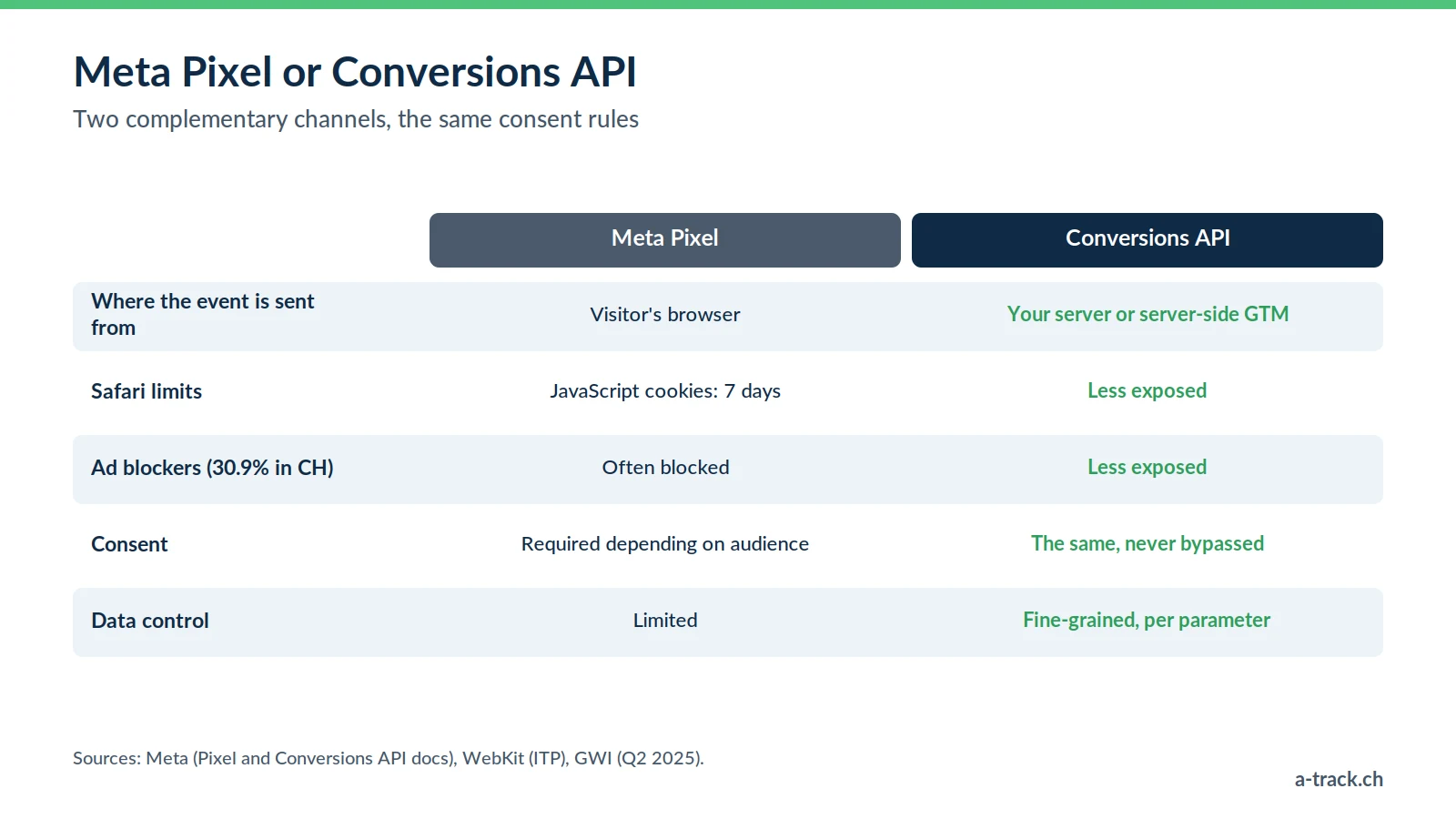
The Pixel runs in the browser; the Conversions API (CAPI) sends events from a server.
Collection: the visitor's browser for the Pixel; your server, or a server-side GTM container, for CAPI.
Technical restrictions: the Pixel is hit by Safari's limits (JavaScript cookies capped at 7 days) and by ad blockers, used by 30.9% of Swiss internet users according to GWI (Q2 2025). CAPI is less exposed.
Consent: the same in both cases. CAPI does not replace the visitor's agreement.
Data control: on the server, you decide exactly what goes to Meta.
Meta recommends using both together, with a shared event_id for deduplication (Meta documentation). Step-by-step setup in our Facebook CAPI guide.
Compliance: FADP, GDPR and consent
Advertising tracking involves personal data. The rules depend on who you target:
EU (GDPR and ePrivacy): prior consent before any non-essential cookie, and therefore before the Pixel fires.
Switzerland (Art. 45c of the Telecommunications Act and the FADP): clear information and a right to refuse. The FADP also requires transparency about purposes and recipients, Meta included.
In practice: if you also target the EU, or want a single setup, fire the Pixel only after consent, through your CMP and Google Tag Manager.
On documentation, the FADP requires a record of processing activities (Art. 12 FADP), with exemptions for companies with fewer than 250 employees. The FDPIC can investigate and order measures; fines of up to CHF 250,000 target responsible individuals for intentional violations and are imposed by cantonal criminal authorities. The full framework is in our FADP and GDPR compliance guide.
Installing and checking the Meta Pixel
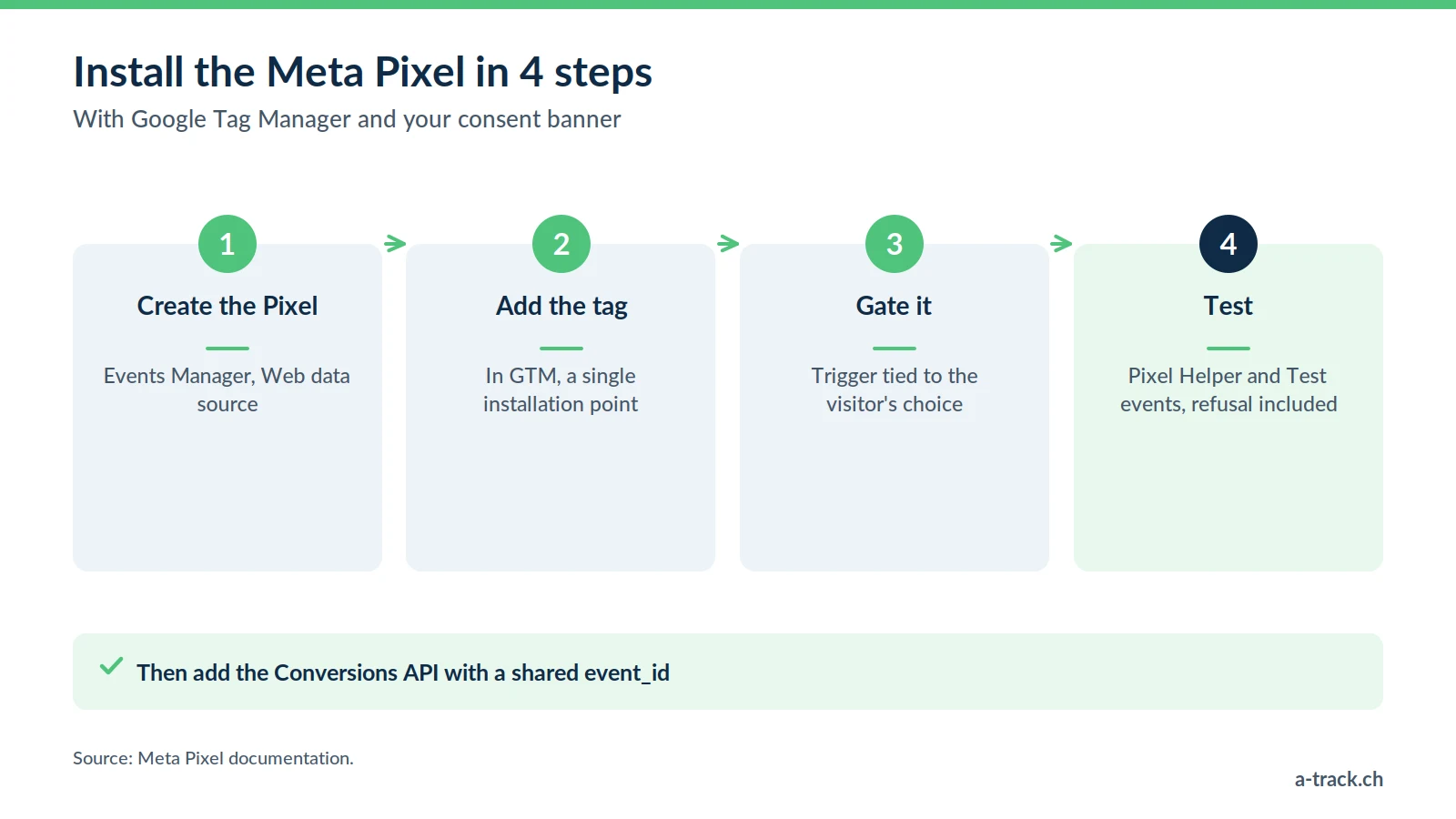
Step 1: create the Pixel
In Meta Events Manager, choose "Connect data sources", then "Web", and name your Pixel.
Step 2: add it to your site
Through Google Tag Manager (recommended), with a trigger that depends on consent;
through your CMS's native integration (Shopify, WordPress, Wix);
or manually, in the <head> of every page.
Step 3: check
Review events with the Meta Pixel Helper extension and the "Test events" tool.
Make sure nothing fires before the visitor's choice, or after a refusal.
Common mistakes and best practices
The most frequent mistakes
Pixel firing before consent or despite a refusal;
duplicate events (CMS plugin and GTM running side by side);
purchases without value or currency;
different event names in the Pixel and the Conversions API, which prevents deduplication.
Best practices
A single, documented installation source;
every event tested after each site update;
the Pixel complemented by the Conversions API, with a shared event_id;
a monthly check: back-office purchases compared with Meta purchases.
A-Track tip
Open your site in a private window, refuse cookies and look at the Meta Pixel Helper extension: no event should appear. It is the quickest way to spot a Pixel hard-coded by a plugin, outside your CMP.
Conclusion: from Pixel to server-side
The Pixel remains the foundation of your Meta campaigns, but it is no longer enough on its own. Server-side tracking, with the Conversions API on your own subdomain, makes measurement more robust against technical restrictions while respecting the visitor's choice. To go further: server-side Meta CAPI with Stape.
Check that your Pixel only fires after consent.
Remove duplicates and add value and currency to purchases.
Add the Conversions API with a shared event_id.
Is your Meta Pixel firing at the right moment?
A-Track checks your Meta Pixel: firing only after consent, duplicate events, purchase value and currency, readiness for the Conversions API.
Request your free tracking and compliance audit, delivered within 48 hours.